The problem with a policy that only says no
Every data-loss prevention deployment eventually meets the same moment. Someone with a legitimate reason needs to send a legitimate file to a site that isn't on the allow-list: a client portal, a regulator's submission form, a one-off vendor request. The policy is correct. The block is correct. And the person is now stuck, with a deadline, and no path forward except a support ticket and a wait.
What happens next is the part security teams know too well: people route around the control. They forward the file to a personal address, or move to an unmanaged device, or ask a colleague with looser access to send it for them. A control with no legitimate escape hatch doesn't get respected. It gets bypassed.
What's new in version 1.2.2:
Blocked uploads no longer end in a dead end. Users can request a one-off exemption directly from the block notice, administrators review it in the dashboard, and an approval takes effect immediately, without ever loosening the underlying policy.
Request an exemption when a file is blocked
When an upload is blocked on a site that isn't on your organization's allow-list, the block notice now offers a way forward. The user adds a business justification and submits. No separate portal, no ticket queue, no context switch away from the work they were doing.
- Request in-line, from the block itself. The exemption form appears in the same notice that stopped the upload, so the request is made at the exact moment the person understands why they need it.
- A tracking reference on the spot. Every submission returns a reference such as
EXM-000123immediately, so the user has something concrete to follow up on and the help desk has something to search. - Approval takes effect immediately. Once an administrator approves, the user simply retries the upload. No waiting period, no browser restart, no re-provisioning.
- Narrow by default. An approval is specific to that exact file and that exact site. It does not open the destination generally, it does not apply to the user's next upload, and an administrator can revoke it at any time.
What it looks like in practice
Here is the whole round trip, from the moment an upload is stopped to the moment it is approved.
1. The upload is blocked, and the user asks for an exception
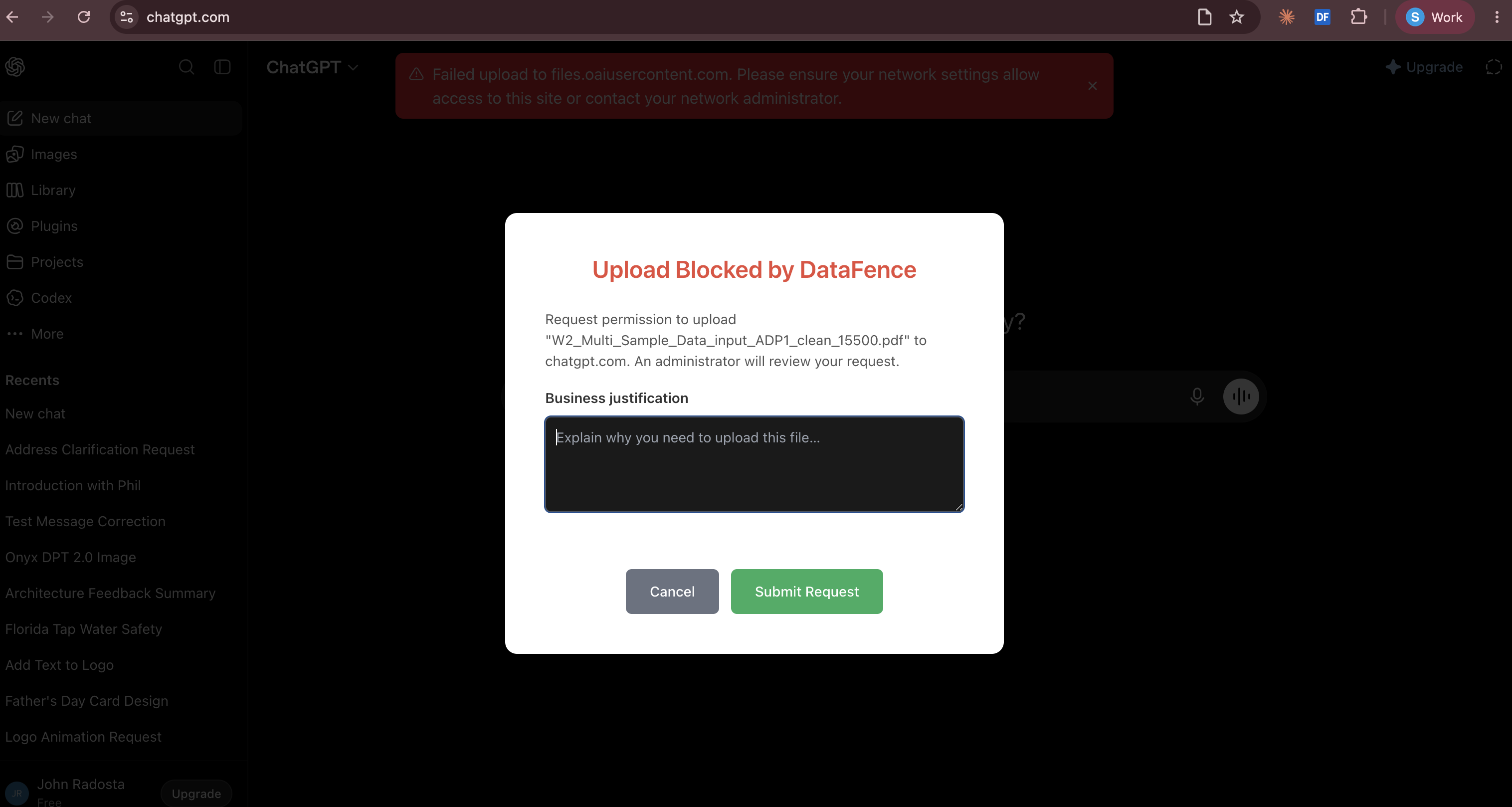
In this case someone tried to upload a W-2 to ChatGPT. The upload never reached the site: the browser's own request failed, and DataFence explains why and offers the one action that is actually useful. The user writes a business justification and submits. That is the entire user-side workflow.
2. An administrator reviews it with the evidence attached
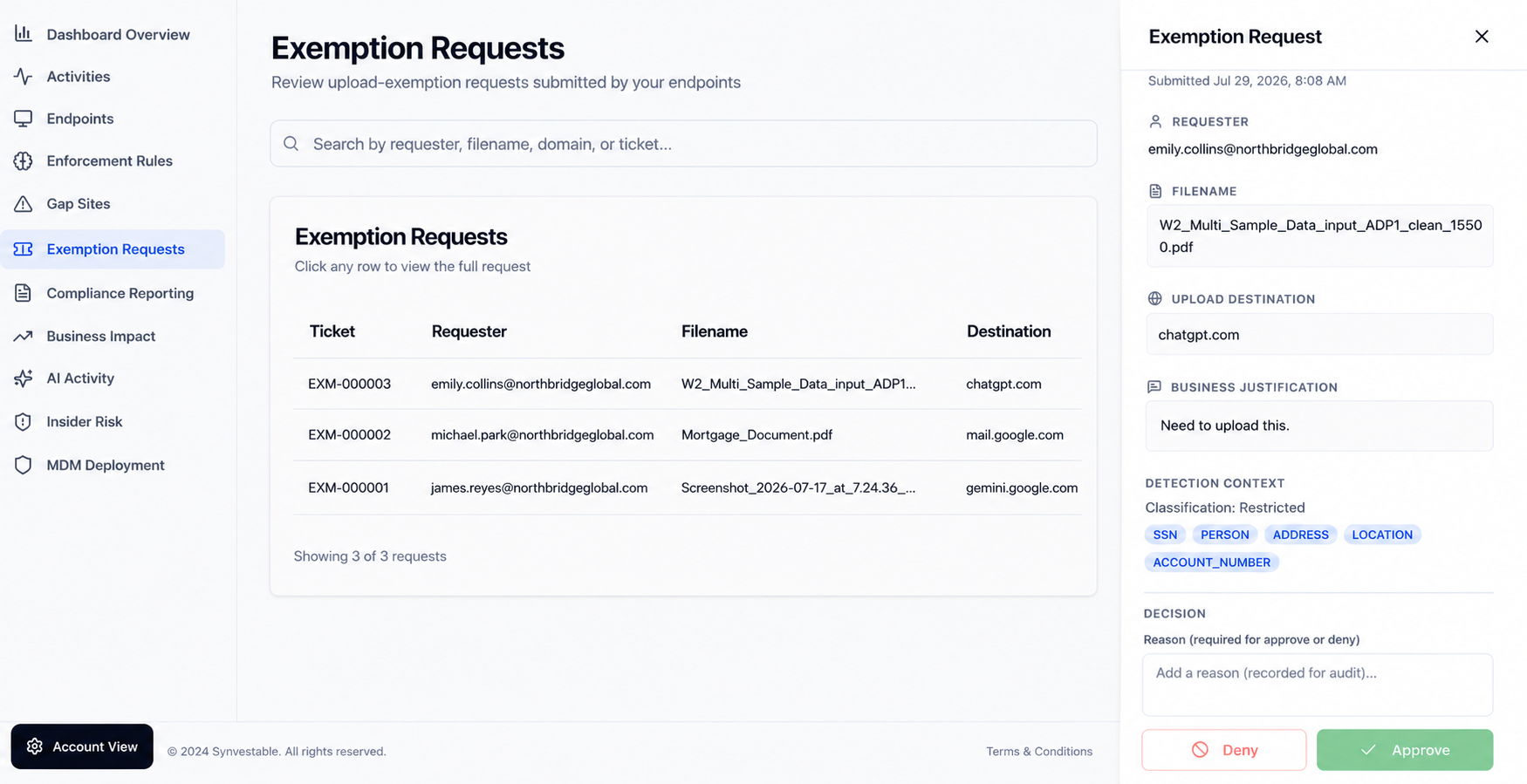
This is the part that makes the feature safe rather than merely convenient. The reviewer is not being asked to trust a justification in isolation. Alongside the requester, filename, and destination, the panel shows what DataFence actually found in the file: a Restricted classification, and detected SSN, name, address, location, and account-number entities. An administrator can see at a glance that this really is a tax document going to a public AI service, and decide accordingly.
Both outcomes require a written reason, and that reason is recorded for audit. Approving an exception is therefore just as accountable as denying one, which is exactly the property a compliance reviewer will ask about later.
Enforcement stays server-side
This is the design decision that makes the feature safe to ship. The extension never approves an upload on its own. It submits the request and honors a decision made server-side by an administrator, so an exemption cannot be forged, replayed, or forced from the browser, and a compromised or modified client cannot grant itself an exception.
The audit trail follows the same principle. Because every request carries its own reference, its detection context, and a required decision reason, the exception is not just controlled, it is evidenced. When an auditor asks why a file left through a non-approved destination on a particular date, the answer is a record rather than a recollection.
Refinements in this release
- Clearer block notices. After a request is submitted, the notice confirms the reference and the next step, with no leftover buttons inviting a second submission.
- Modal suppression on non-verdict. When a safety check returns no verdict, no block modal is shown. Protection still applies; the interface simply stops interrupting with a dialog that has nothing to say.
- Consistent justification field. The exemption request form now displays typed text clearly on every site, regardless of how aggressively the page styles its own inputs.
- General reliability and polish across the upload and text-monitoring flows.
Enterprise-grade data loss prevention, in the browser
DataFence protects sensitive information by monitoring file uploads and text inputs across every website. When sensitive data is detected, enforcement happens before anything leaves the browser, the last point at which a mistake is still preventable.
Real-time file monitoring
- Intercepts file uploads before they are sent
- Analyzes file content for sensitive information
- Works across upload methods: drag and drop, file picker, and programmatic uploads
Smart content analysis
- Detects PII, financial data, and confidential company documents
- Proprietary AI-powered classification engine
- Customizable policy enforcement across your organizations
Instant protection
- Block or warn before data is transmitted
- Domain-based allow and block lists for whole destinations
- Zero-latency interception
What each tier adds
Enterprise
- SOC 2, ISO 27001, GDPR, and HIPAA controls and evidence reporting
- Business impact reports for ROI on breaches avoided
- Full administrative audit trail
- Text input and copy-paste monitoring
- MDM advanced configuration, including browser lockdown and AI kill switches
Onyx
- Everything in Enterprise, plus…
- Deep file scanning and activity summarizations
- Advanced data sensitivity and threat detection
- Enhanced data classification engine
- AI activity reporting and insider risk scoring
Standard MDM deployment files are available on every plan, covering Microsoft Intune, Jamf, Workspace ONE, Google Workspace, Group Policy, and RMM tools such as NinjaOne, Datto, and Kaseya.
How it works
- Sign up. Enroll and create your organization at secure.datafence.ai.
- Provision. Upload a CSV of your employees to generate client IDs.
- Install. Deploy the DataFence extension to all endpoints using Chrome or Edge enterprise deployment tools.
- Configure. Enter the client ID and assigned user email, or deploy org-wide via MDM.
- Monitor. The extension enforces your data policy automatically, everywhere your people work.
Built for
- Small, mid-market, and enterprise companies handling PII and sensitive data
- Healthcare organizations with HIPAA obligations
- Teams tracking SOC 2, ISO 27001, and GDPR compliance
- Financial institutions
- Government contractors
- Managed service providers. Ask support about our dealer program
Privacy and security
- All analysis happens through secure API calls
- No organizational PII or sensitive data stored locally or in our cloud
- Encrypted credential storage
- Enterprise-grade security architecture
- DDoS protection and a web application firewall across the platform
Requirements
- Chrome 88+ or Microsoft Edge 88+
- A valid DataFence client ID. Sign up at secure.datafence.ai
The DataFence extension requires an active DataFence subscription. Version 1.2.2 updates automatically through the Chrome Web Store for managed deployments, so no action is required from your administrators.
Frequently Asked Questions
What is new in DataFence extension version 1.2.2?
Version 1.2.2 lets a user request a one-off exemption directly from the block notice when an upload is stopped on a site that is not on the organization's allow-list. The request includes a business justification, returns a tracking reference immediately, and goes to an administrator for review.
How quickly does an approved exemption take effect?
Immediately. Once an administrator approves the request, the user simply retries the upload. There is no waiting period and no need to restart the browser.
How narrow is an approved exemption?
An approval is specific to that exact file and that exact site. It does not open the site generally, does not apply to other files, and an administrator can revoke it at any time.
Can an exemption be faked or forced from the browser?
No. Enforcement stays server-side. The extension never approves an upload on its own. It only submits the request and honors a decision made by an administrator, so an exemption cannot be forged or forced client-side.
What does an administrator see when reviewing an exemption request?
The Exemption Requests view shows the requester, the filename, the upload destination, and the business justification, alongside the detection context DataFence found in the file. That includes the classification level and the specific sensitive entity types detected, such as SSN, name, address, location, and account number. Approving or denying requires a written reason, which is recorded for audit.
Do administrators have a record of exemption requests?
Yes. Every request carries a tracking reference such as EXM-000123 and appears in the Exemption Requests view of the DataFence dashboard, with the requesting user, the destination, the file, and the submitted business justification.
See exemption requests in action.
Schedule a demo to watch a blocked upload become an approved one: request, review, and retry, without loosening a single policy along the way.
Related reading
About DataFence: DataFence is the leading data loss prevention solution and a real-time analytics platform built for data security. Our platform delivers real-time visibility and enforcement at the browser, the point where employees access AI tools, cloud apps, and sensitive data, stopping data exfiltration, surfacing shadow IT, and proving compliance before a breach happens.